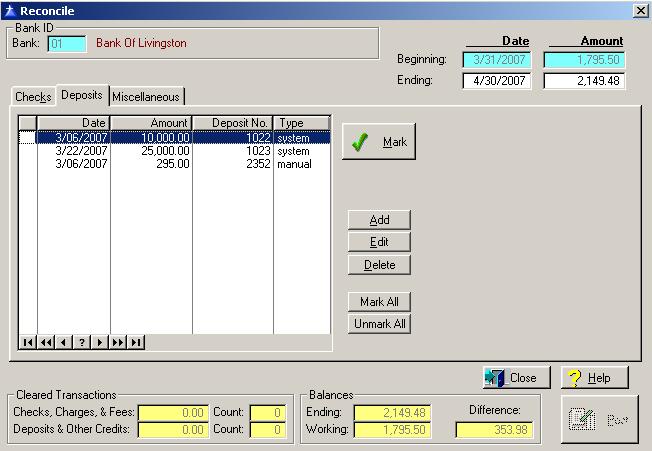
The Deposits window contains all the outstanding deposits currently in the system. The deposits file is automatically updated each time a deposit is recorded in the system. The only time that you would manually add a deposit is to record the outstanding deposits when you use the Bank Reconciliation module for the first time. Manually added deposits do not update the General Ledger system. To access the Deposits tab from another window in the Reconcile option, click on the Deposits tab.
The Deposit tab will be displayed as follows:
Enter or edit the information on the Deposits tab according to the following specifications:
Mark Button
To mark a deposit as cleared, click on the Mark button, press “Alt M”, or highlight the deposit and press the Enter key. When a deposit is marked as cleared, a green check mark will appear in the first column of the deposit record. To unmark a deposit as cleared, follow the same steps as you performed to mark the deposit as cleared.
Mark All Button
Click the Mark All button to mark all deposits as cleared.
Unmark All Button
Click the Unmark All button to unmark all deposits as cleared.
Deposit Maintenance
To add a new Deposit, click on the Add button, press “Alt A”, or press the Insert key. The only time you would add Deposits is to enter your outstanding Deposits when begin using the system.
To edit an existing manually added deposit, highlight the deposit and click on the Edit button, or press “Alt E”. You cannot edit deposits created via the Enter Deposits in Accounts Receivable.
To delete an existing manually added deposit, highlight the deposit, click on the Delete button, press “Alt D”, or press the Delete key. You cannot delete deposits created via the Enter Deposits in Accounts Receivable.
To exit the Reconcile list window, click on Close button, press “Alt O”, or press the Esc key.
To access online help, click on the Help button, press “Alt H”, or press F1.
The system will display the Enter/Edit Deposit Information window as follows:
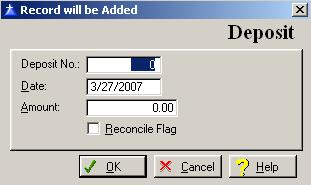
Enter or edit the information on the Deposit window according to the following specifications:
Deposit Number
Enter up to seven-characters for the Deposit number.
Deposit Date
Enter the Deposit date.
Deposit Amount
Enter the amount of the Deposit.
Reconcile Flag
Enter a check in the box if you want to mark the Deposit as cleared. If you do not want to mark the Deposit as cleared, leave the box unchecked. To place a check in the box, click on the Reconcile Flag box, or press the Space Bar when the selection box is positioned over the Reconcile Flag field.
To save and exit the Deposit Information window, press Page Down, click on the OK button, or press “Alt O”. To exit without saving the Deposit Information window, click on the Cancel button, press “Alt C”, press Esc, or click on the “X” in the upper right corner of the screen.
To access online help, click on the Help button, press “Alt H”, or press F1.