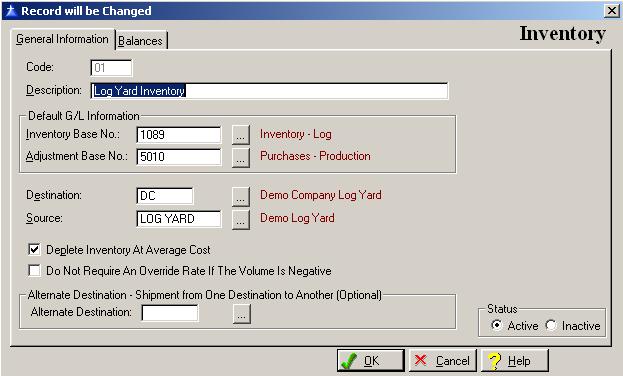
The General Information window contains all basic information associated with the Inventory. The system defaults to the General Information window whenever you are performing Inventory maintenance. To access the General Information tab from the Balance window in Inventory maintenance, click on the General Information tab, or press “Alt G”.
When you enter a new Inventory, the system will display the Inventory’s General Information window as follows:
Enter or edit the information on the Inventory’s General Information window according to the following specifications:
Inventory Code
The inventory code is a three-character alphanumeric field used to identify the Inventory within the system. The system does allow the use of duplicate codes.
Description
Enter the name or description of the inventory. The field allows for up to thirty-five alphanumeric characters.
Inventory Base G/L Account Number
Enter the general ledger account number for the inventory. To display a selection list of the valid general ledger account numbers defined in the company, press Enter, or click on the Lookup button.
Inventory Adjustment Base G/L Account Number
An entry in this field is optional. Enter the general ledger account number to which you want to record inventory adjustments. To display a selection list of the valid general ledger account numbers defined in the company, press Enter, or click on the Lookup button.
Destination
Enter the destination that the inventory is assigned. To display a selection list of the valid destinations defined in the company, press Enter, or click on the Lookup button.
Source
Enter the tract that the inventory is assigned. To display a selection list of the valid tracts defined in the company, press Enter, or click on the Lookup button.
Deplete Inventory At Average Cost
Enter a check in the box if the inventory is to be relieved at average cost. If the inventory will be relieved at the selling price leave the box unchecked. To place a check in the box, click on the Deplete Inventory At Average Cost box, or press the Space Bar when the cursor is positioned over the field.
Do Not Require An Override Rate If The Volume Is Negative
Enter a check in the box if you only track inventory volume and not inventory cost. To place a check in the box, click on the Do Not Require An Override Rate If The Volume Is Negative box, or press the Space Bar when the cursor is positioned over the field.
Alternate Destination
An entry in this field is optional. Enter the alternate destination in which you want to ship to from another destination. To display a selection list of the valid destinations defined in the company, press Enter, or click on the Lookup button.
Status
Select the active box if the Inventory is active, or select the inactive box if the Inventory is inactive. The system defaults to displaying only the active Inventories on the selection list.
To save and exit the Inventory window, press Page Down, click on the OK button, or press “Alt O”. To exit without saving the Inventory window, click on the Cancel button, press “Alt C”, press Esc, or click on the “X” in the upper right corner of the screen.
To access online help, click on the Help button, press “Alt H”, or press F1.