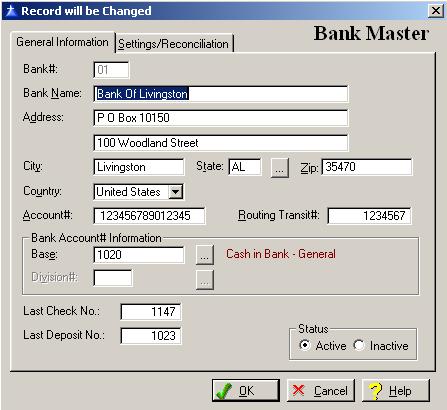
The General Information window is used to setup new bank accounts in the system. The system defaults to displaying the General Information tab.
When you add a new Bank Master, the system will display the Bank Master Information window as follows:
Enter or edit the information on the Bank Master Information window according to the following specifications:
Bank Number
The code is a two-character field used to identify the Bank Master within the system. The system does not allow the use of duplicate Bank Master codes.
Bank Name
Enter up to thirty-characters for the bank name.
Address 1
Enter the first line of the address for the bank. The field allows for up to thirty-five alphanumeric characters and is required.
Address 2
Enter the second line of the address for the bank, if necessary. The field allows for up to thirty-five alphanumeric characters and is optional.
City
Enter the official city or township for the above address. The field allows for up to twenty characters and is required.
State
Enter the U.S.P.S. code of the state for the above address, or click on the Lookup button to select the state from the browse window. An entry in this field is required.
Zip Code
Enter the U.S.P.S. Zip Code for the above address. The system provides for the required standard five-digit code, along with the four-digit extension and is required.
Country
The system defaults the country to the United States. To select a different county click on the drop-down box arrow. An entry in this field is required.
Bank Account Number
Enter up to fifteen characters for the bank account number. This account number is not to be confused with the General Ledger account that you will assign to the bank.
Bank Routing Transit Number
Enter up to fifteen characters for the bank routing transit number.
G/L Base Account Number
Enter the general ledger base account number for the bank account. To display a selection list of the valid general ledger account numbers, press Enter, or click on the Lookup button. An entry in this field is required.
Division Number
If applicable, enter the division number assigned to the bank account. To display a selection list of the valid divisions, press Enter, or click on the Lookup button.
Last Check Number
Enter the last check number issued. The system uses this field in determining the next check number when printing checks. The field is incremented by one each time a check is printed.
Last Deposit Number
Enter the last deposit number issued. The system uses this field in determining the next deposit number when entering deposits. The field is incremented by one each time a deposit is entered.
Status
Select the active box if the general ledger account is active, or select the inactive box if the general ledger account is inactive. The system defaults to displaying only the active Bank Master on the selection list.
To save and exit the Bank Master window, press Page Down, click on the OK button, or press “Alt O”. To exit without saving the Bank Master window, click on the Cancel button, press “Alt C”, press Esc, or click on the “X” in the upper right corner of the screen.
To access online help, click on the Help button, press “Alt H”, or F1.