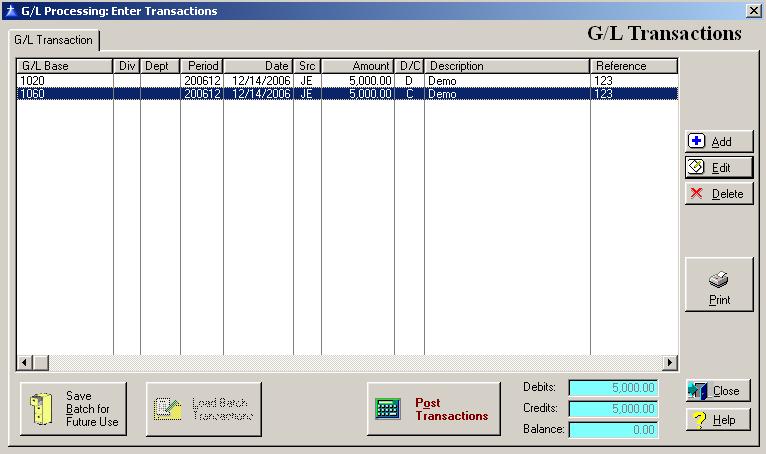
The enter transactions option is used to enter/edit journal entries into the General Ledger. To access the Enter Transactions window, select the menu option entitled Enter Transactions on the General Ledger Processing menu.
The G/L Transaction window is shown below:
To print a General Ledger Transaction listing, click on the Print button, or press “Alt P”.
Save Batch for Future Use
This is used to save a batch of transactions that you use from time to time. To save a batch, click on the Save Batch for Future Use, or press “Alt B”.
Load Batch Transactions
If you want to use a previously saved batch of transactions, click on the Load Batch Transactions button, or press “Alt L”.
Post Transactions Button
When you have completed entering the general ledger transactions and confirmed that they are correct, click on the Post Transactions button, or press “Alt O” to post the transactions to the general ledger. The Post Transactions button does not activate until the “Balance” field is equal to zero. The General Ledger Posting Register is displayed when the posting process has completed.
G/L Transaction Maintenance
To add a Transaction, click on the Add button, press the Insert key, or press “Alt A”.
To edit a Transaction, highlight the Transaction and click on the Edit button, or press “Alt E”.
To delete a Transaction, highlight the Transaction and click on the Delete button, press the Delete key, or press “Alt D”.
To exit the Transactions window, click on Close button, or press the Esc key.
To access online help, click on the Help button, press “Alt H”, or press F1.
When you add a new G/L Transaction, the system will display the Enter/Edit Transaction window as follows:
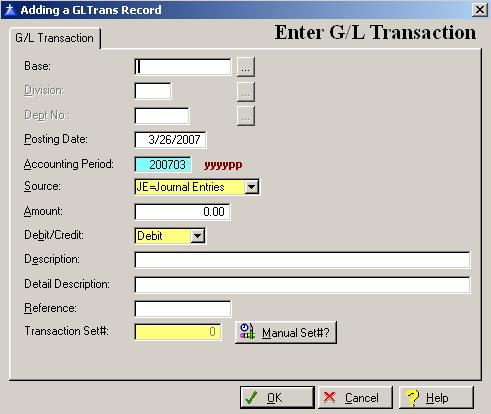
Enter or edit the information on the Enter G/L Transaction window according to the following specifications:
G/L Base Account Number
Enter General Ledger Base Account Number for the transaction. To display a selection list of the valid general ledger account numbers defined within the system, press Enter, or click on the Lookup button.
Division Number
If your company does not use divisions, you are not allowed access to the division field. If your company uses divisions, enter the division number to which you want to distribute the transaction. If the base account number is a cost of sales, or expense account, the system will require an entry for the division field. If the base account is a balance sheet, or equity account, the system will not allow an entry in the division field unless you require divisions on balance sheet accounts.
Department Number
If your company does not use departments, you are not allowed access to the department field. If your company uses departments, enter the department number to which you want to distribute the Transaction. If the base account number is a cost of sales or expense account, the system will require an entry for the department field. If the base account is a balance sheet or equity account, the system will not allow an entry in the department field.
Posting Date
Enter the posting date of the transaction.
Accounting Period
The system selects the accounting period based on the posting date of the transaction date compared to the accounting periods defined within the system. The system requires that all transactions in the batch must have the same accounting period.
Source
The system defaults the source to “JE” (Journal Entries). Accept the default source code, or click on the down arrow to change the source code.
Amount
Enter the amount of the transaction. The field allows for up to eleven digits with two decimal positions.
Debit/Credit
The system defaults to a debit or credit based on the type of the general ledger base account entered. Accept the default transaction type, or click on the down arrow to change the transaction type.
Description
Enter the description for the transaction. An entry in this field is required and allows for up to thirty characters.
Detail Description
If applicable, enter an additional description for the transaction. An entry in this field is optional and allows for up to thirty characters.
Reference
Enter an optional fifteen-character reference.
Transaction Set Number
The transaction set number is used when entering transaction to correct an out of balance. The transaction set number is displayed on the out of balance report.
To save and exit the G/L Transaction window, press Page Down, click on the OK button, or press “Alt O”. To exit without saving the G/L Transaction window, click on the Cancel button, press “Alt C”, press Esc, or click on the “X” in the upper right corner of the screen.
To access online help, click on the Help button, press “Alt H”, or press F1.