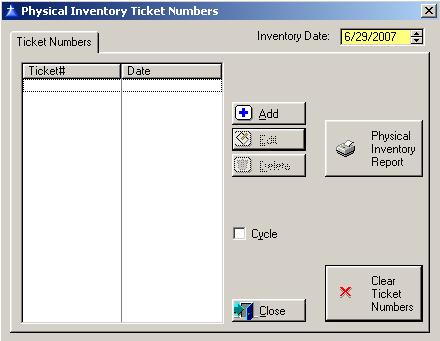
After printing the Inventory Work Sheet and circling the tickets that are left on the yard, use the Physical Inventory - Ticket # option to enter the ticket numbers and print the Physical Inventory Report.
To access the Physical Inventory - Ticket # list window, select the menu option entitled Physical Inventory - Ticket # on the Log Inventory Processing menu.
The Physical Inventory - Ticket # list window will be displayed as follows:
Enter or edit the information on the Physical Inventory Ticket Numbers window according to the following specifications:
Inventory Date
Enter the date for which you want to print the inventory.
Cycle Box
To remain in the add mode without returning to the Physical Inventory - Ticket # list window each time you add a new Ticket #, check the cycle box. To place a check in the box, click on the Cycle box, press “Alt Y”, or press the Space Bar when the selection box is positioned over the "cycle" field. You would normally check the cycle box if you are entering more than one Ticket # during the current session.After entering all the ticket numbers, press the Physical Inventory Report button to print the physical inventory report.
Clear Ticket Numbers
To clear out the ticket numbers for the next inventory, press the Clear Ticket Numbers button.
To exit the Physical Inventory - Ticket # list window, click on Close button, press “Alt O”, or press the Esc key.
Physical Inventory Ticket Number Maintenance
To add a new ticket number, click on the Add button, press “Alt A”, or press the Insert key.
To edit a ticket number, highlight the inventory and click on the Edit button, or press “Alt E”.
To delete a ticket number, click on the Delete button, press “Alt D”, or press the Delete key.
When you enter a new Ticket Number, the system will display the Physical Inventory window as follows:
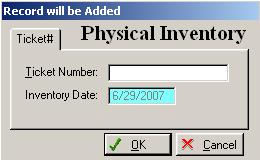
Enter or edit the information on the Physical Inventory Ticket Numbers window according to the following specifications:
Ticket Number
Enter the ticket numbers that are left on the yard.
Inventory Date
This is controlled by the date set on the prior screen. If you need to change the date cancel out of the Physical Inventory screen, change the date, and then click add again.
To save and exit the Physical Inventory window, press Page Down, click on the OK button, or press “Alt O”. To exit without saving the Physical Inventory window, click on the Cancel button, press “Alt C”, press Esc, or click on the “X” in the upper right corner of the screen.
Return to Top Inventory Work Sheet