The Enter Transaction option is used to enter inventory adjustments and transfers. Inventory receipts and shipments are automatically recorded through the ticket entry process or the scale house system.
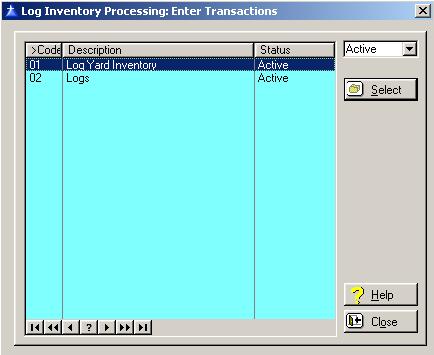
To access the Enter Transactions window, select the menu option entitled Enter Transactions on the Log Inventory Processing menu. If you have multiple inventories defined within the system, the first window the system will display will be the Log Inventory selection windows as displayed below:
Enter Transactions Maintenance
To select an inventory, highlight the desired inventory and click on the Select button, press “Alt S”, or press Enter.
To access online help, click on the Help button, press “Alt H”, or press F1.
To exit the Enter Transactions list window, click on Close button, press “Alt O”, or press the Esc key.
After selecting the desired inventory, the Inventory Transactions window will be displayed as follows:
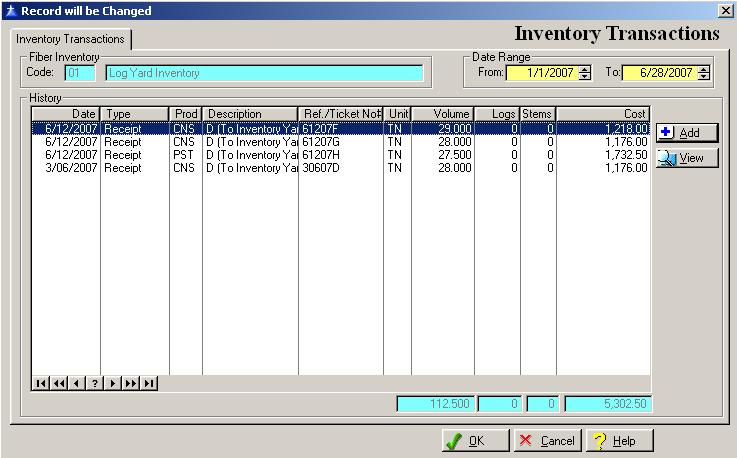
The system defaults to displaying only the inventory transactions for the current system date. To display the transaction for a different date change the cut-off date.
At the current time, the system does not allow you to edit or delete a transaction that was entered incorrectly. You must enter another transaction to offset the incorrect transaction.
The system provides for two types of inventory transactions, Adjustments and Transfers.
To save and exit the Inventory Transactions window, press Page Down, click on the OK button, or press “Alt O”. To exit without saving the Inventory Transactions window, click on the Cancel button, press “Alt C”, press Esc, or click on the “X” in the upper right corner of the screen.
To access online help, click on the Help button, press “Alt H”, or press F1.
Inventory Transactions Maintenance
To add a new Transaction, click on the Add button, press “Alt A”, or press the Insert key.
To view an existing Transaction, highlight the Transaction and click on the View button, press “Alt V”, or press Enter.
The system will display the Enter Inventory Transaction Information window as follows:
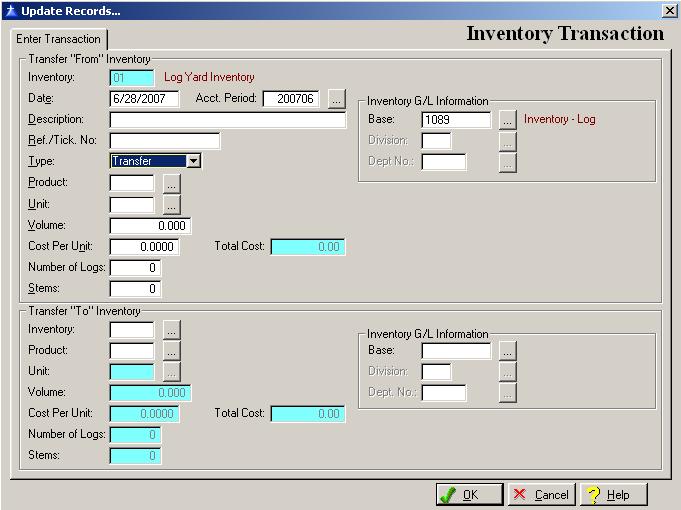
Enter or edit the information on the Inventory Transaction window according to the following specifications:
Date
Enter the date of the inventory transaction.
Accounting Period
The system selects the accounting period based on the transaction date compared to the accounting periods defined within the system. The accounting period must be the current period or the prior period if the prior period is open. You can override the defaulted period with either the current period or the prior period if prior period is open. To display a selection list of the open Accounting Periods defined within the system, press Enter, or click on the Lookup button.
Description
Enter the description for the inventory transaction. An entry in this field is required and the field allows for up to thirty-characters. The description field is shown in the general ledger data file.
Reference/Ticket Number
Enter a reference or a ticket number for the inventory transaction. An entry in this field is required and the field allows for up to fifteen digits. The description field is shown in the general ledger data file.
Transaction Type
Select the transaction type (Adjustment or Transfer) from the drop down box. The system defaults to a transaction type of “Adjustment”, to change the type to a “Transfer”, press the letter “T” or click on the drop down box arrow.
Product
An entry in this field is required. If the transaction type is a “transfer”, the product represents the product being transferred from the selected inventory. To display a selection list of the valid Products defined within the system, press Enter, or click on the Lookup button. The system defaults to displaying only the active products on the selection list.
Unit
Enter the unit of measure for the product selected. To display a selection list of the valid Units of Measure defined within the system, press Enter, or click on the Lookup button.
Volume
Enter the total volume for the transaction. The volume should correspond with the unit of measure entered in the unit field. If the transaction type is a “transfer” the volume represents the volume being transferred from the selected inventory. In order to adjust just the cost, tab or enter past this field.
Cost Per Unit Amount
Enter the cost per unit amount for the volume being transferred or adjusted. If no volume is entered, the Cost Per Unit field is not shown.
Total Cost
The system will calculate the total cost amount based on the volume and the cost per unit entered for the inventory transaction. If no volume is entered, an entry in this field is required.
Number of Logs
Enter the number of logs being transferred or adjusted.
Stems
Enter the number of stems being transferred or adjusted.
If the transaction type is an “adjustment”, the cursor will advance to the general ledger information section of the window. If the transaction type is a “transfer”, the cursor will advance “Transfer To” section of the window.
Inventory Base G/L Account Number
The inventory general ledger base account defaults to the base account assigned in the inventory master file. Accept the defaulted base general ledger account, or override it with another base general ledger account. If the transaction type is a “transfer”, the inventory account represents the inventory being transferred from.
Division
If your company does not use divisions, you are not allowed access to the division field. If your company uses divisions, enter the division number to which you want to distribute the transaction. If the base account number is a cost of sales, or expense account, the system will require an entry for the division field. If your company uses divisions, press the Enter key, or click on the Lookup button to display a selection list of the valid divisions defined for the company. If the base account is a balance sheet, or equity account, the system will not allow an entry in the division field unless you require divisions on balance sheet accounts.
Department Number
The department field is active only if your company uses department. If your company uses departments, press the Enter key, or click on the Lookup button to display a selection list of the valid departments defined for the company. If the base account number is a cost of sales or expense account, the system will require an entry for the department field. If the base account is a balance sheet or equity account, the system will not allow an entry in the department field.
Inventory Adjustment Base G/L Account Number
This field is required and is active if the transaction type is an “adjustment”. Enter the general ledger account number to which you want to record the inventory adjustment. To display a selection list of the valid general ledger account numbers defined within the system, press Enter, or click on the Lookup button.
Division
If your company does not use divisions, you are not allowed access to the division field. If your company uses divisions, enter the division number to which you want to distribute the voucher. If the base account number is a cost of sales, or expense account, the system will require an entry for the division field. If your company uses divisions, press the Enter key, or click on the Lookup button to display a selection list of the valid divisions defined for the company. If the base account is a balance sheet, or equity account, the system will not allow an entry in the division field unless you require divisions on balance sheet accounts.
Department Number
The department field is active only if your company uses department. If your company uses departments, press the Enter key, or click on the Lookup button to display a selection list of the valid departments defined for the company. If the base account number is a cost of sales or expense account, the system will require an entry for the department field. If the base account is a balance sheet or equity account, the system will not allow an entry in the department field.
Transfer To Inventory
Enter the inventory where you are transferring the product. An entry in this field is required. To display a selection list of the valid inventories defined within the system, press Enter, or click on the Lookup button.
Transfer To Product
Enter the product that you are transferring. An entry in this field is required. To display a selection list of the valid products defined within the system, press Enter, or click on the Lookup button. The system defaults to displaying only the active products on the selection list.
Transfer To Unit
The unit field defaults to the unit defined in the “transfer from” unit. The user is not allowed to access this field.
Transfer To Volume
The volume field defaults to the volume defined in the “transfer from” field. The user is not allowed to access this field.
Transfer To Cost Per Unit Amount
The cost per unit amount field defaults to the cost per unit amount defined in the “transfer from” field. The user is not allowed to access this field.
Transfer To Total Cost
The total cost amount field defaults to the total cost amount defined in the “transfer from” field. The user is not allowed to access this field.
Transfer To Number of Logs
The number of logs field defaults to the number of logs defined in the “transfer from” field. The user is not allowed to access this field.
Transfer To Stems
The stems field defaults to the stems defined in the “transfer from” field. The user is not allowed to access this field.
Transfer To Inventory Base G/L Account Number
Enter the inventory general ledger base account for the inventory where you are transferring the product. The general ledger account defaults to the base account assigned in the inventory master file. Accept the defaulted general ledger account, or override it with another general ledger account. If the transaction type is a “transfer”, the inventory account represents the inventory being transferred from. To display a selection list of the valid general ledger account numbers defined within the system, press Enter, or click on the Lookup button.
Transfer To Division
If your company does not use divisions, you are not allowed access to the division field. If your company uses divisions, enter the division number to which you want to distribute the voucher. If the base account number is a cost of sales, or expense account, the system will require an entry for the division field. If your company uses divisions, press the Enter key, or click on the Lookup button to display a selection list of the valid divisions defined for the company. If the base account is a balance sheet, or equity account, the system will not allow an entry in the division field unless you require divisions on balance sheet accounts.
Transfer To Department
The department field is active only if your company uses department. If your company uses departments, press the Enter key, or click on the Lookup button to display a selection list of the valid departments defined for the company. If the base account number is a cost of sales or expense account, the system will require an entry for the department field. If the base account is a balance sheet or equity account, the system will not allow an entry in the department field.
To save and exit the Inventory Transactions window, press Page Down, click on the OK button, or press “Alt O”. To exit without saving the Inventory Transactions window, click on the Cancel button, press “Alt C”, press Esc, or click on the “X” in the upper right corner of the screen.
To access online help, click on the Help button, press “Alt H”, or press F1.
Return to Top Physical Inventory - Ticket #